




 Appointments: Self-schedule available appointments and view upcoming visits
Messages: Send and receive non-urgent messages from your care team
Medications: Request prescription refills
Lab Results: View your test results
Medical Records: View portions of your health record
Referrals: View and request referrals
Immunizations: View your immunization history
Reminders: Receive important health reminders
Personal Information: Review and update your contact information
Education: Access educational materials from your care team
Always on the go?
Download the Healow app to access your InterMed Patient Portal and keep track of your family's care, wherever you are.


I forgot my username or password
Use the account recovery options on the MyInterMed login page.
I still can’t access my account
Our Portal Support Specialist is happy to help with account access and other portal questions.
Call: 207-523-3937.
Follow these steps if you are using MyInterMed through a web browser.
1. Open the provider search
Start a new message and select Search Provider by Last Name or the magnifying-glass icon. Selecting the To field will not open the provider search.
2. Search for your provider
A search box will appear near the Facility field. 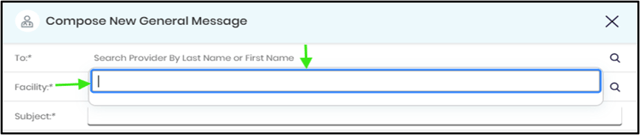
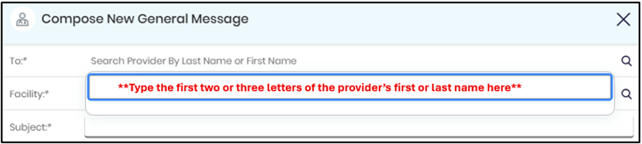
Enter the first two or three letters of your provider’s first or last name.
3. Select your provider
Choose your provider from the search results.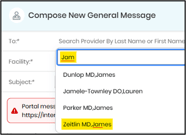
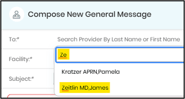
4. Select a location
Select Select Facility, then choose the InterMed location where you see that provider.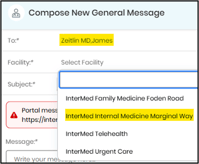
Follow these steps if you are using MyInterMed through the Healow App.
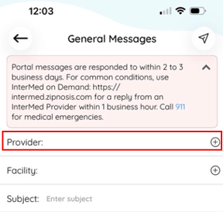
1. Start a new message
Open the Healow app, start a new message and select Provider.
2. Find your provider
The app initially shows a limited list of providers. If you do not see your provider, select Search Provider.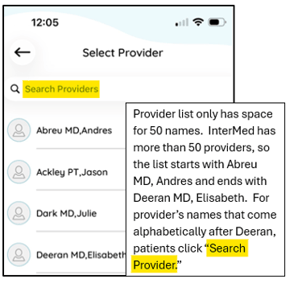
3. Search by name
Enter the first two or three letters of your provider’s first or last name.
Select the blue magnifying-glass button on your keyboard to search.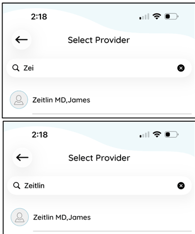
4. Select your provider
Choose your provider from the search results. Then add a subject, write your message and select Send.
To join a scheduled telehealth appointment:
-
Log in to MyInterMed.
-
Select Join a Televisit.
-
Enter the healowTV code provided by your care team.
-
Follow the instructions to begin your visit.
If you do not have your code or cannot join the appointment, call the office where your appointment is scheduled.
My keyboard doesn’t appear when I try to write a message.
On some smartphones and tablets, the keyboard may not open when you select the Subject or Message field. If this happens:
-
Select Send.
-
When a notice appears, select OK.
-
Select the Subject or Message field again.
-
The keyboard should appear.
If the keyboard still does not appear, close and reopen the portal or app. You can also call Portal Support at 207-523-3937.
The portal isn’t working correctly in my browser.
MyInterMed works best when you use an up-to-date web browser.
If you are having trouble:
-
Refresh the page.
-
Close and reopen your browser.
-
Make sure your browser is up to date.
-
Try a different browser.
Call Portal Support at 207-523-3937 if you still need help.
I need help accessing a child or family member's information.
Call Portal Support at 207-523-3937 to learn about the access available to you.